![SpacetoCo_Logo2_black.png]](https://support.spacetoco.com/hs-fs/hubfs/SpacetoCo_Logo2_black.png?height=50&name=SpacetoCo_Logo2_black.png)
This article is for Hosts who want to manage, edit, pause, duplicate, or delete their Space listings in the SpacetoCo dashboard.
Note: This guide assumes you have already listed at least one Space. If you haven't created a listing yet, see how to become a Host.
Publishing Your Space Listing
Space listings remain in draft mode until you add your payout bank details. This ensures you can receive payments for completed bookings.
Once bank details are verified, you will be able to take your space live, and it becomes available to be booked for events.
To set up your payout bank details, see how Hosts add bank details for payment.
Listing Statuses and Actions
When managing your listings in Spaces Management, click the three vertical dots menu on any Space card to access status controls:
- Pause Space: Temporarily hides your Space from search results and prevents new bookings. Use this for renovations, extended leave, or venue ownership changes.
- Unpause Space: Re-enables a paused Space listing so it becomes searchable and bookable again.
- Duplicate Space: Copies an existing Space listing—including all content, pricing rules, and photos—to quickly create similar listings.
- Delete: Removes the Space however, this can only be done if there is no historical booking data.
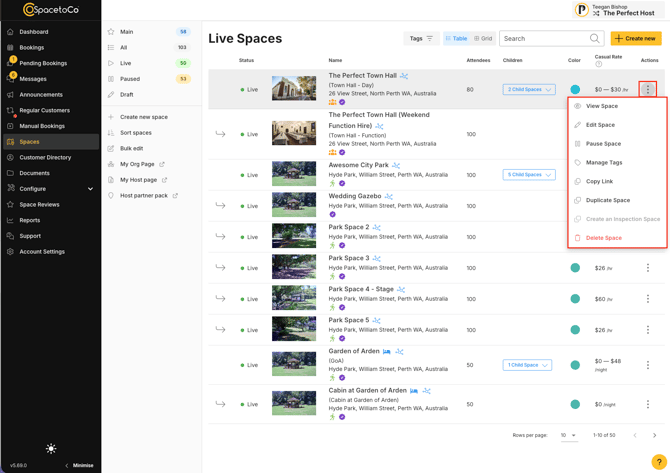
Note: If your Space is unavailable only for a short period, adjust your calendar availability by adding a blockout or manual booking instead of pausing the entire listing. You can also select Copy link from the three-dot menu to grab your public Space URL for social media or your website.
Why Changes Might Not Show Up Immediately
To ensure fast page loading and search engine performance, SpacetoCo uses cached snapshots of public Space pages.
When you save an update, there may be a short delay before your changes display on the live listing:
- Short delay (10–30 minutes): Background systems detect your updates and prepare a fresh page snapshot.
- Full refresh (within 24 hours): System-wide page snapshots regenerate regularly to ensure your updates load permanently for all visitors.
Note: If you saved a change and do not see it on your live listing immediately, wait 10 to 15 minutes and refresh your browser. If your changes are still missing after 24 hours, contact SpacetoCo support via email at info@spacetoco.com