![SpacetoCo_Logo2_black.png]](https://support.spacetoco.com/hs-fs/hubfs/SpacetoCo_Logo2_black.png?height=50&name=SpacetoCo_Logo2_black.png)
Delete a Space
Deleting removes the space from your dashboard while preserving historical record data in SpacetoCo.
- Go to your SpacetoCo Dashboard.
- Select Spaces (or go to app.spacetoco.com/dashboard/host/spaces).
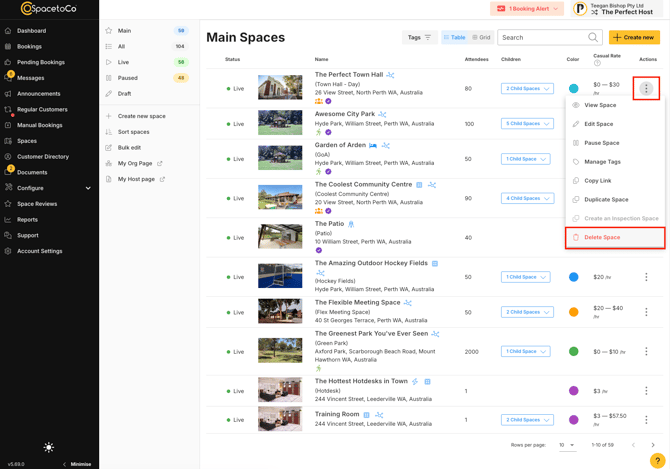
- Locate the space and click the three vertical dots.
- Select Delete and confirm the on-screen prompts.
Pause a Space
Spaces with previous bookings or historic booking data cannot be deleted. If the delete option is unavailable, pause the space instead. Pausing immediately removes the space from search results and stops new bookings.
- Go to your SpacetoCo Dashboard.
- Select Spaces.
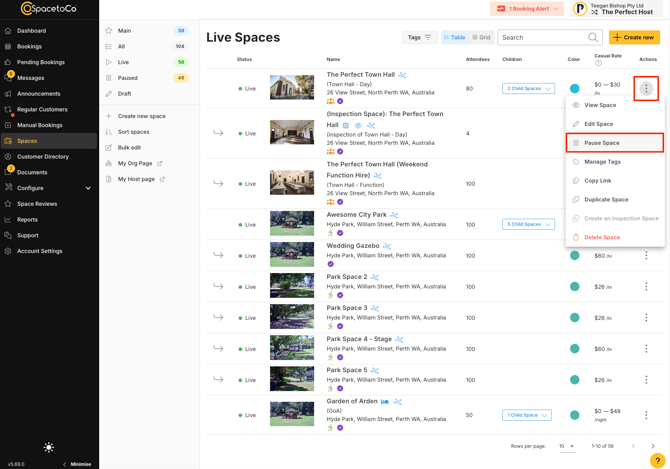
- Locate the space and click the three vertical dots.
- Select Pause.
Note: If you only need to close a space temporarily for maintenance or holidays, consider adjusting your calendar availability instead so you do not miss future bookings.
Before You Pause: Check Regular Customer Permissions
If any Regular Customers have direct booking permissions for the space, remove their permission before pausing. This ensures they cannot submit new bookings while the space is offline.
Learn more about managing these access levels in Booking permissions for Regular Customers.