![SpacetoCo_Logo2_black.png]](https://support.spacetoco.com/hs-fs/hubfs/SpacetoCo_Logo2_black.png?height=50&name=SpacetoCo_Logo2_black.png)
A Purchase Order (PO) number is a unique reference code issued by an organisation’s finance or procurement department. If your organisation, school, or business requires a PO number to approve and process payments, you can have this reference included on your SpacetoCo invoices and receipts.
Managing PO Numbers as a Host
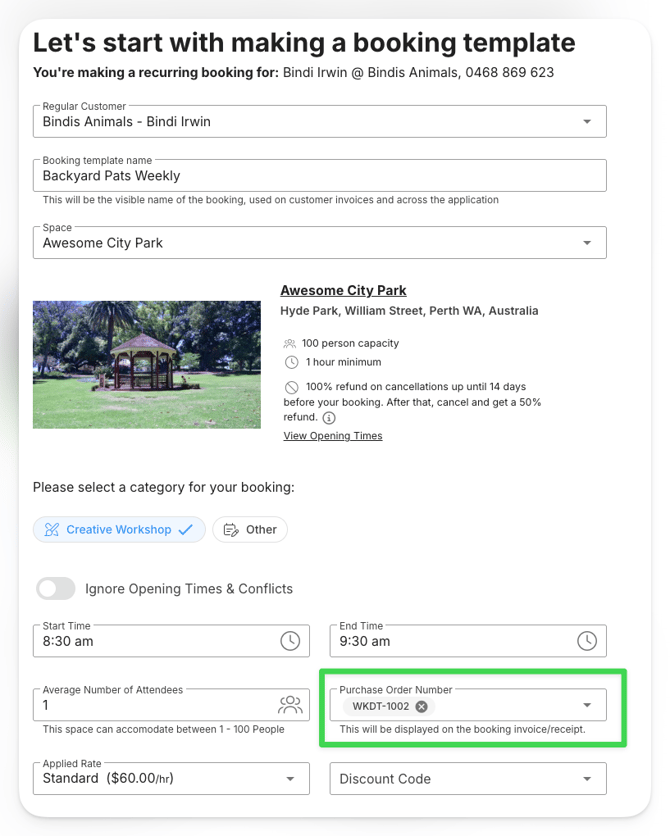
If you're working with an enterprise or government organisation that uses Purchase Orders, SpacetoCo has you covered. Both hosts and hirers can enter and update PO numbers (e.g ACME-123) on bookings and change requests.
Once added, you can find a booking using PO numbers across your host dashboard and in reporting.
Hosts can view and update PO numbers to help corporate, school, and government Hirers reconcile their payments quickly.
✏️ Where you can add PO numbers
- Within a regular application to use as a default for all newly created bookings with the hirer.
- When creating or editing bookings from your dashboard.
👀 Where PO numbers appear
- Invoices: Located at the top of the invoice, and within each relevant line item where a booking or change request has an accompanying PO number.
- Bookings: When viewing bookings from your dashboard, you can search by Purchase Order number. You can also view and edit it on the booking itself.
- Bulk editing: When updating bookings via the Bulk editing feature.
- Reporting: You can export PO numbers as a reporting column in the host dashboard.
🧠 Things to know about PO numbers
Multiple PO numbers:
- You can add multiple numbers wherever PO numbers appear.
- If an invoice consolidates several bookings and change requests, they will appear against each line item, and grouped together at the top of the invoice.
Invoices:
- Adding or modifying POs on an existing booking triggers an invoice update.
Frequently Asked Questions?
Where can the guest see their purchase order numbers once invoiced?
Purchase Order Numbers appear in invoicing at the top of invoices and under booking details